
Drawings & Markups
TL;DR: Upload your drawing PDFs, organize them into folders, open them in the viewer, and create Markup Pages—the required workspace for all takeoffs and measurements.
Before You Start
Make sure you have:
- Construction drawings in PDF format
- A project created in AedisPro
- Required permissions to upload files or create markups
- Folder structure planned if uploading large drawing sets
Note: At the moment, AedisPro only supports PDF files for drawings. Image formats (PNG/JPG) and DWG files are not yet supported.
Overview
The Files and Markups sections allow you to upload, organize, and prepare your drawings for takeoff. All measurement workflows begin with creating at least one Markup Page.
Important: Raw PDFs cannot be measured directly—every measurement must be placed on a markup.
Uploading Drawing PDFs
You can upload:
- Individual PDF files, or
- Entire folders of PDFs
This gives flexibility for both small and large drawing packages.
1. Open the Files Tab
Inside your project, click Files in the top navigation bar.
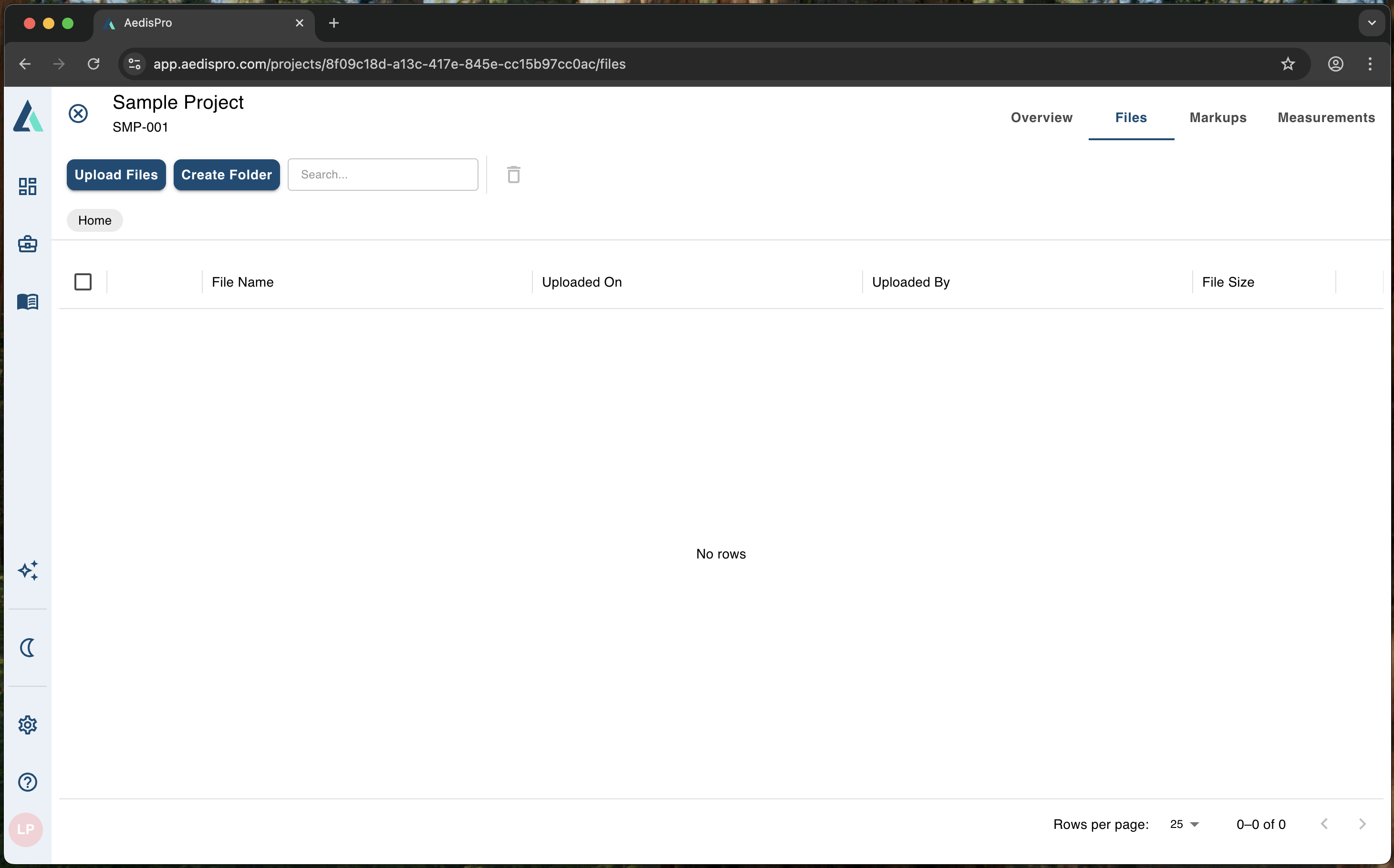
Files tab interface with upload options and file management tools
You will see:
- Upload Files button
- Create Folder
- Search bar
- File list with:
- File name
- Upload date
- Uploaded by
- File size
Uploading Individual PDF Files
- Click Upload Files.
- Select Select Files.
- Choose one or more PDF drawings from your device.
- Click Upload to complete the process.
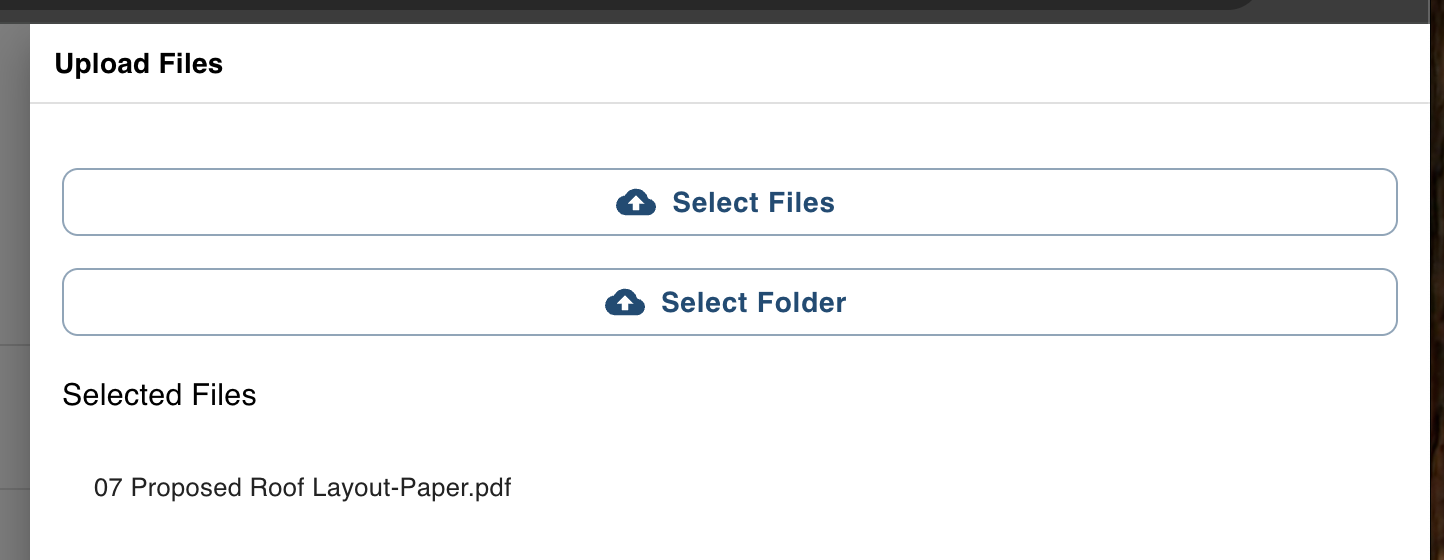
File upload dialog for selecting individual PDF files
Uploading a Folder of PDFs
AedisPro supports folder uploads to keep drawing packages organized.
- Click Upload Files.
- Select Select Folder.
- Choose a folder containing only PDF files.
- Confirm by clicking Upload.
Folder names and structure are preserved upon upload.
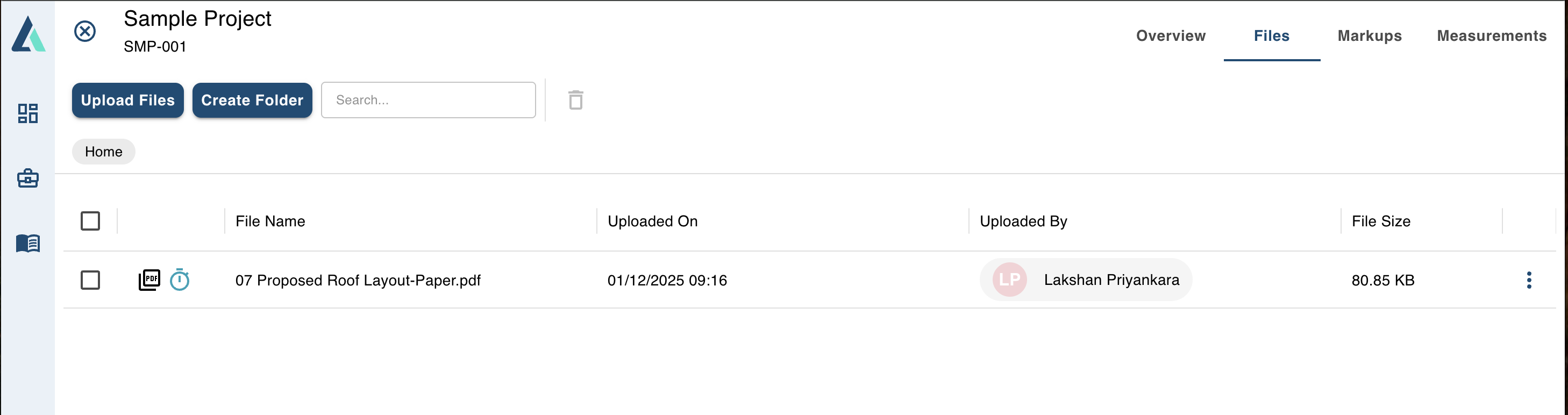
Files list showing uploaded PDFs with organized folder structure
Organizing Your Drawings
To maintain clarity and improve navigation, use folders to group your drawing PDFs.
Create a Folder
- Click Create Folder.
- Enter a folder name (e.g., Architectural, Services, Site Plans).
- Click Save.
Manage Your Files
- Move PDFs into folders
- Delete files when necessary
- Use search to quickly find sheets
Best Practice: Keep drawing names consistent:
- • A101 – Floor Plan
- • S105 – Slab Layout
- • M204 – HVAC Plan
Opening Drawing PDFs
To begin creating markups:
- Locate a PDF in the Files list.
- Click the file name or thumbnail.
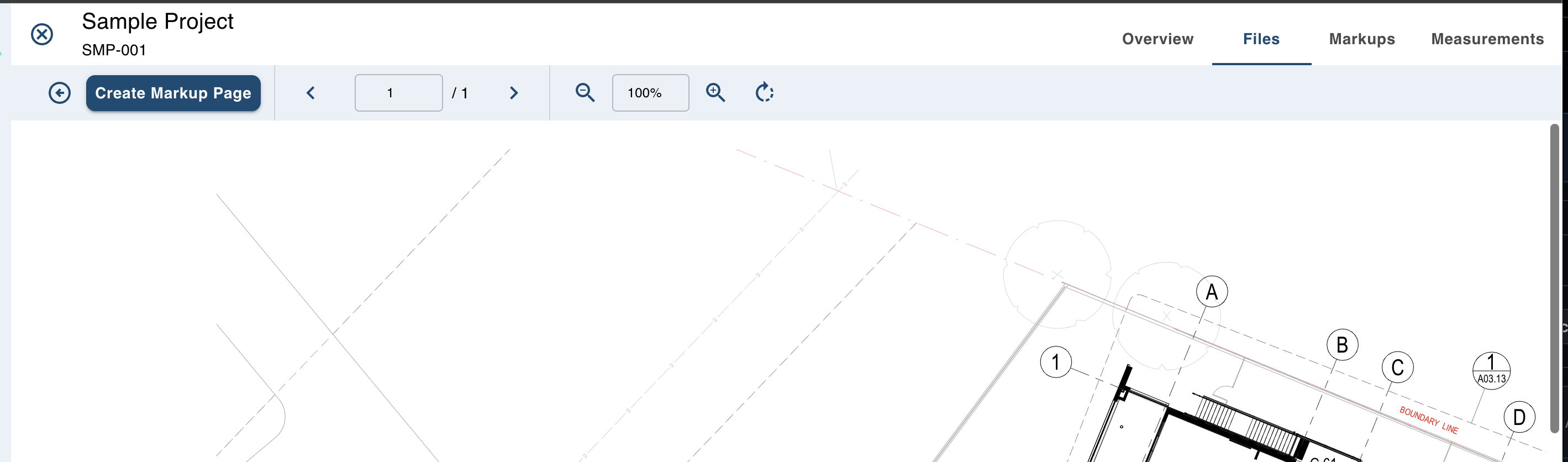
Drawing viewer with opened PDF showing navigation and markup creation tools
The PDF opens in the drawing viewer with:
- Page navigation
- Zoom controls
- Rotation tools
- Create Markup Page button
The viewer displays multi-sheet PDFs and allows you to switch between pages.
Creating Markup Pages
A Markup Page is required for all measurements.You cannot measure directly on the PDF.
Why Markup Pages Are Required
Markup pages:
- Act as a measurement workspace
- Keep your original PDF untouched
- Allow multiple measurement sets for the same drawing
- Enable collaboration without overwriting other users' work
How to Create a Markup Page
- Open the drawing PDF from the Files tab.
- Click Create Markup Page.
- Fill out the form:
- Page Number – pre-filled based on the opened page
- Label – e.g., Ground Floor Plan
- Name – name for this markup set
- Description – optional
- Click Save.
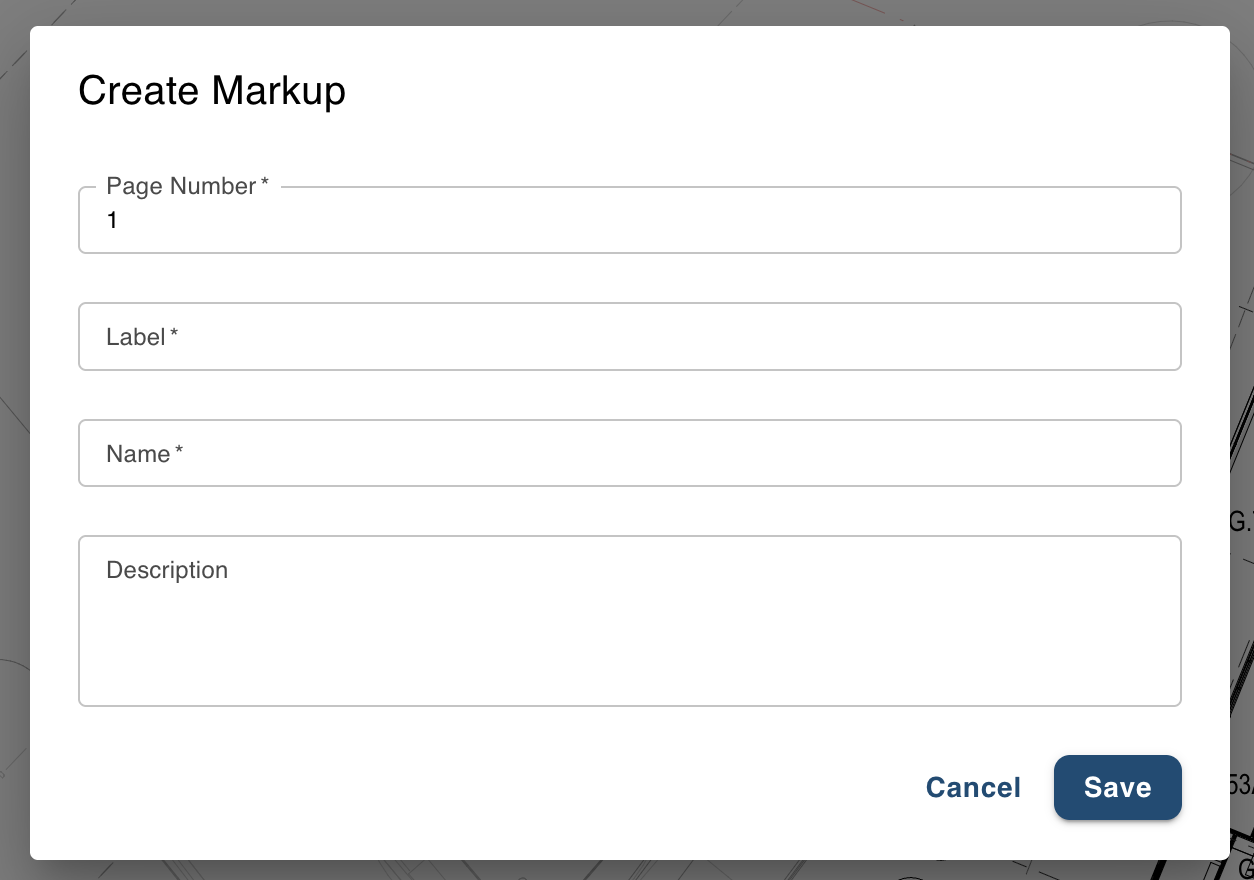
Create Markup Page dialog for setting up measurement workspace
The markup is created and becomes visible in the Markups tab.
Managing Your Markups
The Markups section provides a visual list of all created markups.
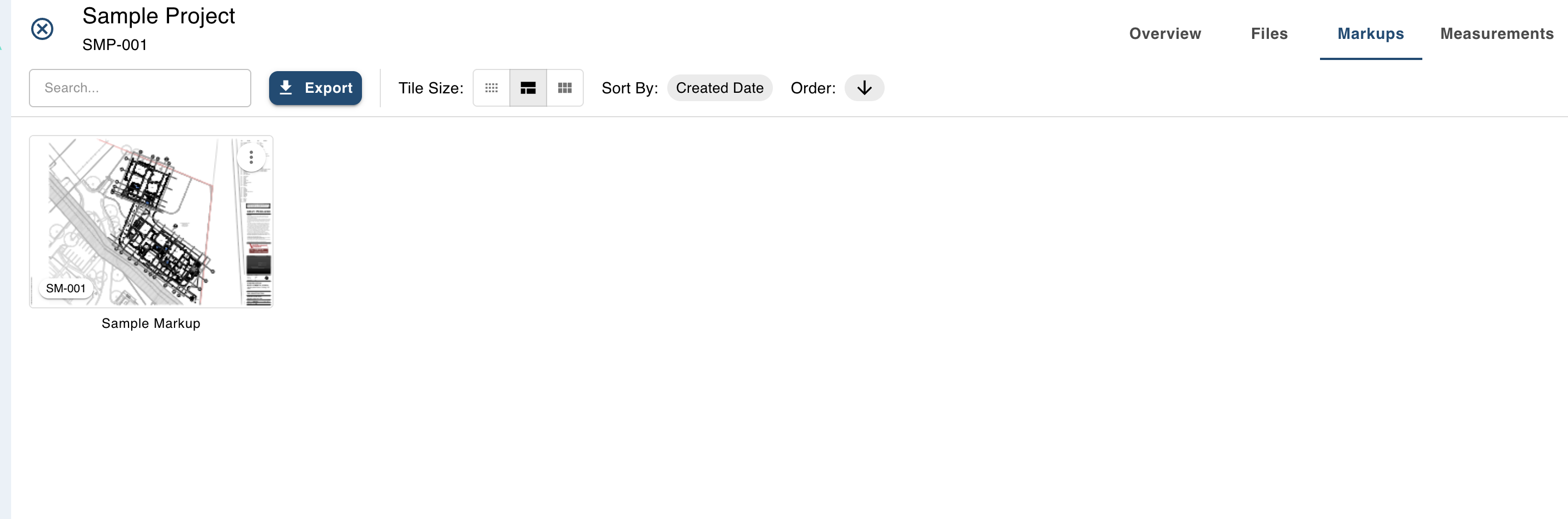
Markups tab displaying created markup pages with thumbnails and management options
Here, you can:
- Open markups
- Sort by date or name
- Change tile size (grid or list view)
- Export markups
- Rename or delete markup pages
- Preview markup thumbnails
Each tile shows:
- The drawing preview with your markup elements
- The markup name
- The label (e.g., Floor Plan)
Click a markup tile to open it and begin measuring.
Summary
- ✓ Only PDF files can be uploaded as drawings
- ✓ Upload via files or folders
- ✓ Organize drawings using custom folders
- ✓ Open PDFs to create Markup Pages
- ✓ Markup Pages are required before performing measurements
- ✓ Manage all markups through the Markups tab