
Measurements (BOQ View)
TL;DR: The Measurements page converts your takeoff data into a structured Bill of Quantities (BOQ) format. Here you can organize measurements into Collections, apply descriptions, numbering, pricing, and export everything as a professional spreadsheet.
Overview
The Measurements section in AedisPro is where all measurement results come together in a structured, editable BOQ-style table. This is the final stage of your takeoff workflow where you:
- Organize measurements into work sections
- Add BOQ numbers and descriptions
- Enter rates and generate amounts
- Add notes and specifications
- Manage pricing using Price Books
- Export the compiled BOQ to Excel
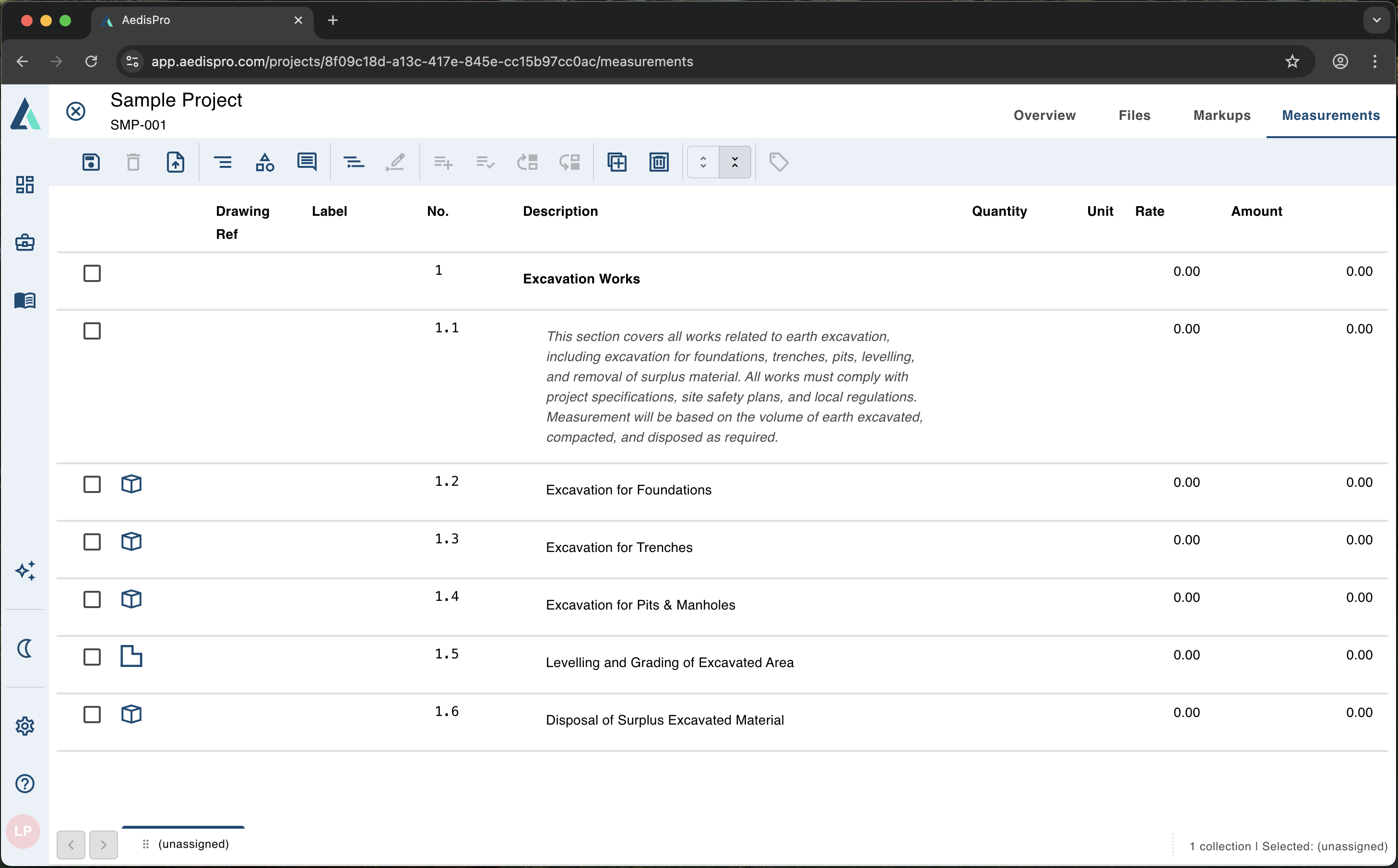
Measurements BOQ view with structured table format for professional quantity surveying
This interface transforms raw measurement data into a clean, professional document ready for tendering, pricing, and reporting.
BOQ Layout and Table Structure
Each row in the Measurement View represents either:
- A Heading
- A Sub-heading
- A Measured item (linked to markup measurements)
- A Description-only item
- An External reference (e.g., detail notes)
Columns in the Measurement Table
Drawing Ref – Links to markup sheets or drawing references.
Label – Optional code or sheet reference for identification.
No. – BOQ numbering (e.g., 1, 1.1, 1.1.1).
Description – Work item description or specification text.
Quantity – Auto-calculated from your Markup measurements.
Unit – m, m², m³, nr, etc.
Rate – Unit rate for pricing.
Amount – Automatically calculated: Quantity × Rate.
Descriptions can be plain text or multiple lines, allowing for detailed specification notes.
The Measurements Toolbar
The toolbar allows you to create, reorder, style, and manage BOQ rows.

BOQ toolbar with tools for creating, formatting, and managing measurement items
Below is a description of the available tools:
1. Add Section / Heading
Creates a new BOQ section (e.g., 1 Excavation Works).
2. Delete Row
Removes the selected item(s) from the BOQ.
3. Move Up / Move Down
Reorders BOQ items in the structured hierarchy.
4. Text Alignment Tools
- • Left align
- • Center align
- • Right align
Used for descriptions or long text blocks.
5. Style / Indent Tools
- • Indent (create sub-items like 1 → 1.1 → 1.1.1)
- • Outdent (move item back to a higher level)
This is how structured BOQs are built.
6. Add Note / Description Block
Adds a long text field under an item, useful for:
- • Method statements
- • Specification notes
- • Clarifications
- • Work inclusions and exclusions
7. Insert Measurement Item
Links an item directly to a measurement in your Markup Measurement Tree.
8. Insert Summary / Total
Allows subtotaling or summarizing sections.
9. Duplicate Row
Makes a copy of an item, helpful when building repetitive BOQ sections.
10. Delete Formatting
Resets alignment, indent, and styling.
11. Add Collection
Creates a new BOQ Collection (explained below).
Collections
What Are Collections?
Collections are similar to sheets in Excel. They let you separate BOQ items into logical groups such as:
- Architectural Works
- Structural Works
- External Works
- Finishes
- Provisional Sums
- Or any custom structure you prefer
Each Collection has:
- Its own BOQ layout
- Its own numbering
- Its own set of items and measurement references
Collections appear in the bottom-left area, and you can switch between them with one click.
Using Collections Effectively
- Use multiple collections to break down large tenders.
- Keep markup measurements organized by assigning each one to a collection.
- Exporting will bundle all collections into a single Excel workbook.
- Collections can be renamed, reordered, or removed at any time.
Tip: Collections are extremely useful when working with multi-disciplinary projects or multi-package estimations.
Linking Measurements to BOQ Items
When you add a measurement-based item:
- The Quantity field updates live
- The Unit is automatically selected (m, m², m³, nr)
- If multiple measurement shapes are linked, AedisPro sums them for you
This makes your BOQ self-maintaining and reduces human error. If volumes, counts, or areas change during revisions, your BOQ updates instantly.
Notes and Descriptions
Every BOQ item can include:
- Short descriptions
- Multi-line specification text
- Italic / styled annotations
- Instructional or technical notes
These notes do not affect quantity but provide clarity and professionalism to your export.
Rates and Pricing
You can:
- Enter manual unit rates
- Load rates from Price Books
- Override rates at any time
- Auto-calculate amounts based on updated quantities
This makes the Measurements View function like a traditional QS pricing sheet.
Exporting the BOQ
The final compiled BOQ can be exported as:
- Excel (.xlsx)
The export includes:
- All collections (as tabs/sheets)
- All headings, contents, quantities, and pricing
- Drawing references
- Formatted rows and hierarchy
This output is ready for:
- Tender submissions
- Internal estimating
- Contractor pricing
- Client reporting
Summary
The Measurements View transforms your takeoff work into a complete BOQ environment where you can:
- ✓ Build structured sections
- ✓ Insert measurement-driven items
- ✓ Add pricing, notes, and descriptions
- ✓ Organize work under Collections
- ✓ Export an accurate, professional BOQ
It is the final and most powerful stage of the AedisPro takeoff and estimating workflow.